
Don’t Hit ‘Print’ Yet
What to Know Before Sending Your Files to the Printer
Small businesses lose thousands of dollars every year to avoidable print errors—blurry graphics, color shifts, misaligned edges, and reprints that drain your time and budget.
If you’ve ever opened a box of freshly printed materials and immediately felt disappointed, this guide is for you.
This is the practical, no-fluff breakdown of how to prepare files for print the right way—and how Greyshore Studios ensures your materials come out crisp, consistent, and brand-accurate every time.
Why Print Prep Matters More Than You Think
Great print quality doesn’t happen at the printer.
It happens in the file setup.
Even the best-designed piece can fail in production if the file isn’t prepared correctly. And once it’s printed, the mistakes are permanent.
Print prep is where most small businesses lose time, money, and credibility.
Every printer works within specific technical boundaries.
If your file isn’t built for those boundaries, the output won’t match your expectations.
When print goes wrong, it’s almost never the printer.
It’s the file.
Preparing correctly upfront avoids:
-
Color shifts
-
Blurry logos
-
Cropped edges
-
Misaligned folds
-
Extra fees
Think of print prep as the insurance policy your brand deserves.
Common Print File Mistakes That Cost You
Here are the four issues we fix most often—and why they cause so many headaches.
1. Wrong File Type (RGB Instead of CMYK)
RGB is for screens.
CMYK is for print.
That one mismatch is enough to shift your brand colors from “clean and accurate” to “why does my red look orange?”
2. Missing Bleed or Trim Area
Without bleed:
-
Edges can look uneven.
-
Thin white lines may appear.
-
Designs can feel slightly “off.”
Printers need those extra margins to cut accurately.
3. Low-Resolution Graphics
Anything below 300 DPI prints soft or pixelated.
Logos and photos suffer the most—especially when resized incorrectly.
4. Fonts That Aren’t Embedded
If the printer doesn’t have your font installed, your layout changes automatically.
That can shift text, break alignment, or completely change the look of your brand.
These small errors create:
-
Blurry results
-
Strange color shifts
-
Misaligned cuts
-
Avoidable reprints
-
Added fees and production delays
What We Do Instead (The Greyshore Process)
Greyshore Studios removes the guesswork so your files are print-perfect the first time.
We ensure:
-
Correct color profiles (CMYK, spot colors, brand-accurate palettes)
-
Press-ready PDFs with proper bleed, trim, and safe zones
-
High-resolution assets that hold sharp detail in print
-
Embedded fonts and locked-in layout integrity
-
Proofing checks to confirm everything matches your brand and your expectations
Whether you’re printing business cards, menus, flyers, signage, or packaging, our process ensures the final product looks exactly the way it should.
The Essential Print-Ready Checklist
Here’s a simple, practical list you can use before sending any file to a printer.
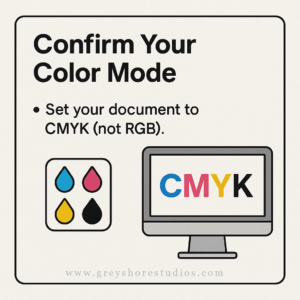
1. Confirm Your Color Mode
-
Set your document to CMYK (not RGB).
-
Convert any embedded images to CMYK as well.
-
Verify your brand colors still appear accurate post-conversion.
Quick test: Print the piece on your home/office printer.
It won’t be perfect, but you’ll quickly spot major color drops or shifts.
2. Set Your Bleed and Safe Zone
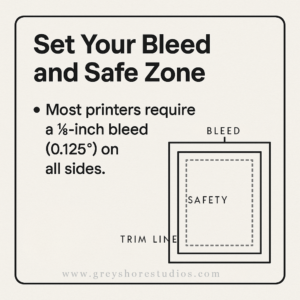
Most printers require a ⅛-inch bleed (0.125”) on all sides.
Your background colors, images, and elements that touch the edge must extend into the bleed.
Safe zone = keep important text and graphics at least ⅛ inch inside the trim line.
Quick rule:
“If it touches the edge, it should touch the bleed.”
3. Check Your Image Resolution
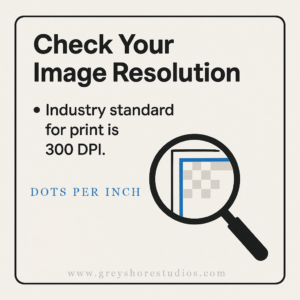
Industry standard for print is 300 DPI.
Lower-resolution images may look fine on-screen but will print soft.
Quick test: Zoom in to 200–300% on your design.
If it looks fuzzy on your screen, it will look fuzzy in print.
4. Embed or Outline Your Fonts
To avoid layout shifts:
-
Embed fonts when exporting to PDF
-
Or convert text to outlines (if the printer allows)
Caution: Don’t outline body text unless necessary.
It becomes uneditable and slightly heavier in weight.
5. Export a Press-Ready PDF
Always choose:
-
PDF/X-1a
-
PDF/X-4
-
High Quality Print
These formats lock colors, flatten transparencies, and preserve crisp details.
When You Should (and Shouldn’t) Fix Files Yourself
Knowing where the line is saves you money and prevents long back-and-forth with the print shop.
You can handle:
- CMYK conversion
- Adding bleed
- Fixing resolution issues
- Basic proofing
You shouldn’t handle:
- Complex color correction
- Large-format graphics
- Spot color management
- Detailed typography adjustments
- Files with layered transparencies or effects
Our Guarantee: We Don’t Just Design — We Deliver

Print Fullfilment
Greyshore Studios manages the full production workflow—from design to print coordination—so your materials arrive:
-
Crisp
-
Color-accurate
-
Professionally finished
Instead of simply promoting services, here’s the value we add behind the scenes – the invisible work most clients never see.
We:
- Audit every element against printer specs
- Convert and correct color spaces
- Ensure brand colors match both screen and print conditions
- Build precise bleed, trim, and safe zones
- Prepare vector assets and high-resolution imagery
- Review proofs before anything hits the press
- Communicate with printers to ensure clarity and consistency
The goal is simple:
Your printed materials should reinforce your professionalism, not undermine it.
You can handle a lot of the basics on your own. We step in when the stakes or the complexity increase.
Need a quick file check?
Get an expert review so you can print with confidence — without wasting money on reprints.
→ Explore our Graphic Design services
→ Learn more about Branding & Print Production Support


